By Appy Labs · Reviewed October 26, 2026
Doodiva adds AI-generated doodles to a photo you select. Choose a style, add optional context and generate an edit. Compare it with your original before saving or sharing.
Choose a photo in the app
Doodiva opens the iOS photo picker. Select the picture you want to edit. The picker can show your library without giving the app access to every photo in it.
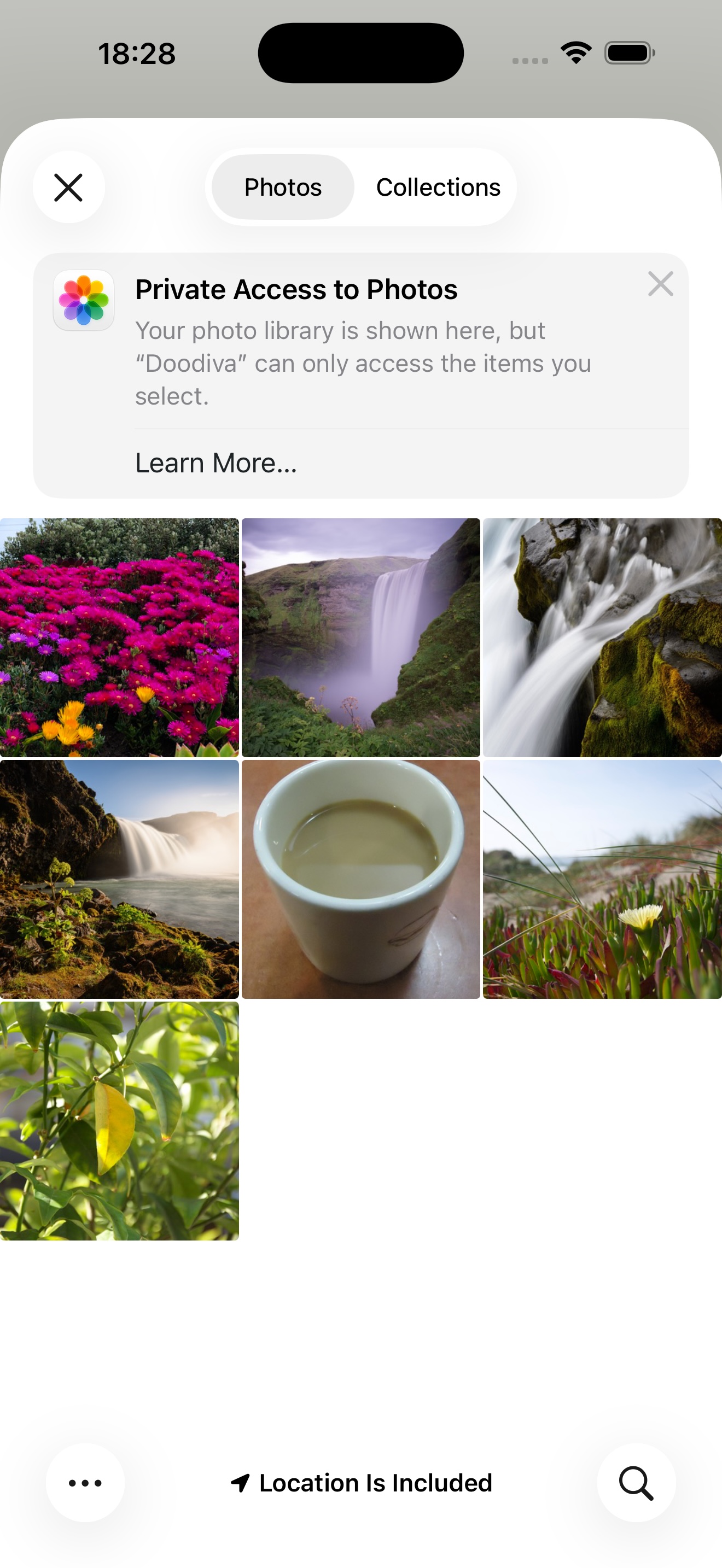
Start with the photo
Choose a picture from your library. A clear subject and some open space give the added marks somewhere to sit. For a group photo, check the faces in the result. For food, check that lettering does not cover the dish you wanted to show.
These are editing suggestions, not guarantees about where the AI will draw. A generated result can change details in the photo.
Choose a style and add useful context
Pick one of the styles available in your installed app. Optional context can explain a name, an occasion or an inside joke that the image alone cannot tell the AI.
For example, Maya's birthday dinner
explains more than make it fun
. For a trip photo, the place name or occasion may be enough. Do not add private information that you do not want sent for online AI processing.
Context guides the edit. It does not guarantee that the AI will use a name correctly, print a sentence exactly or put a caption in a chosen corner.
Generate and compare
- Review the selected photo and available style settings.
- Agree to AI processing before sending the photo and optional context.
- Generate the edit. Each successful generation uses one credit.
- Compare the result with the original. Look at faces, hands, small objects and any text.
- Save the result to Photos or use the share action.
The original and generated result stay separate. Sharing opens the sharing options on your device. It does not publish a social post automatically.
What if the caption is wrong?
Do not use an incorrect caption just because the rest of the edit looks good. If you need exact words, add them manually with iPhone Markup. Doodiva does not provide separate text or doodle layers to move and rewrite.
If your installed app offers refinement controls, they generate another version from the original photo. A successful new version uses another credit. You are not editing one brush stroke in the previous result.
What happens to the photo?
Generation needs an internet connection. After you agree, the selected photo and context go through our backend to an AI provider, including fal.ai. Read the photo processing and privacy page before submitting a sensitive image.
Check the cost before another attempt
Find the current credit packs and subscription terms in the app. Failed generations have refund handling, but an interrupted request may still be pending. Reopen the app to check its status before starting over. Contact support if the result or balance does not recover.
See how credits work and the before-and-after concepts. Those concepts use the app’s template prompts in a separate image tool. They are not captured in-app results or a promise that your edit will match them.